

What Is Dokie and How Does It Work?
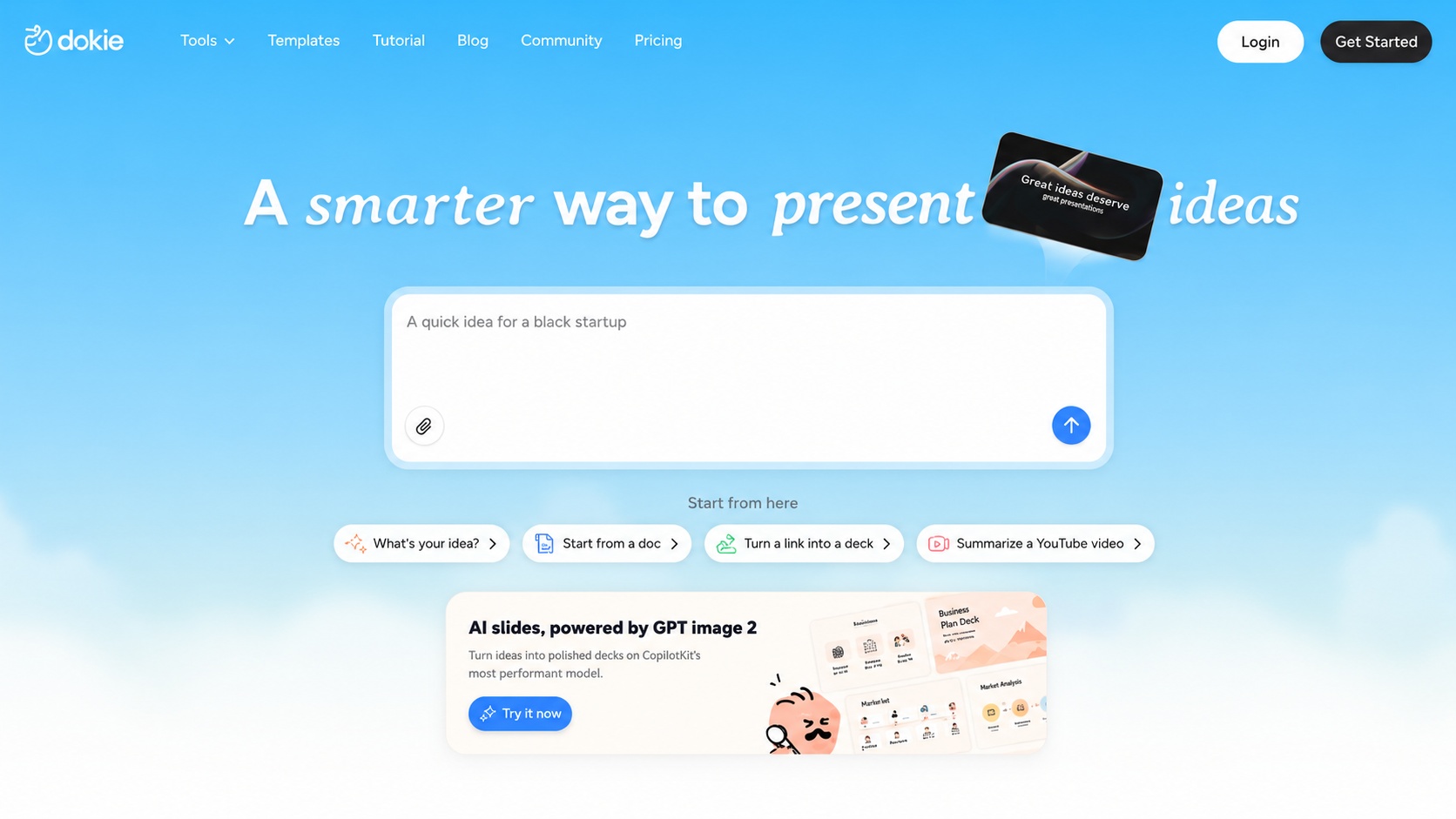
Dokie is an AI presentation maker that helps users create professional, brand-aligned slide decks from ideas, documents, URLs, notes, templates, and reference materials.
It is designed for users who need business-ready presentations without spending hours manually creating and formatting slides. Users can generate a deck, edit slides, refine layouts, apply a style direction, and make targeted changes through chat-based instructions.
This makes Dokie useful for business reports, sales presentations, client proposals, pitch decks, training materials, classroom slides, marketing plans, project updates, and executive briefings.
This review focuses on one specific workflow: turning raw text into a timeline slide through chat.
That workflow matters because timeline slides are common in business presentations, but they are also surprisingly slow to build manually.
How Dokie’s Text-to-Timeline Chat Workflow Works
The text-to-timeline chat workflow means using plain text instructions to turn written timeline information into a visual timeline slide.
A user might paste text like this:
“Phase 1: Research and discovery in January. Phase 2: Product planning in February. Phase 3: Design and prototyping in March. Phase 4: Beta launch in April. Phase 5: Feedback and iteration in May. Phase 6: Public launch in June.”
Then the user can ask Dokie:
Turn this into a clean six-month timeline slide.
Or:
Create a horizontal roadmap from this project plan.
Or:
Make this into a four-phase implementation timeline.
Or:
Simplify this timeline for an executive presentation.
The value is that the user does not need to manually design the timeline from scratch. Dokie can help extract the structure, shorten the milestone labels, create a visual sequence, and make the slide more presentation-friendly.
This is especially useful when the source text is messy, too long, or written like a project note instead of a slide.
Why Manual Timeline Slides Take So Long to Build
Timeline slides look simple, but they involve many small design decisions.
The user has to decide:
Should the timeline be horizontal or vertical?
Should it be grouped by months, quarters, phases, or milestones?
How many points should appear?
How short should each label be?
Should dates be shown above or below the line?
Should each milestone have an icon?
How much detail is too much?
How should the timeline fit the deck style?
How should the slide handle long labels?
How should the timeline avoid looking crowded?
This is why timeline slides often take longer than expected.
The hard part is not only drawing a line. The hard part is turning messy project information into a clear visual sequence.
Manual tools give users control, but they also make the user responsible for every spacing, alignment, and layout decision.
Dokie helps by turning the timeline task into an instruction-based workflow.
The Dokie Text-to-Timeline Speed Test Scenario
For this review, we modeled a realistic business deck revision task.
The user has a 16-slide business presentation. One slide is currently a dense project plan written as paragraphs and bullet points. It needs to become a clean timeline slide before a stakeholder meeting.
The raw text includes:
Project kickoff
Customer research
Product requirements
Design exploration
Prototype review
Engineering build
Beta testing
Feedback collection
Final QA
Launch preparation
Public release
Post-launch review
The goal is to create one clean timeline slide that is:
Readable
Executive-friendly
Visually balanced
Consistent with the deck style
Not too text-heavy
Easy to present in under one minute
This is exactly the kind of slide that often wastes time in manual editing.
Dokie vs. Manual Timeline Creation: Speed Test Results
| Task | Manual Workflow Estimated Time | Dokie-Assisted Estimated Time | Estimated Time Saved |
|---|---|---|---|
| Read raw project text | 3 minutes | 3 minutes | 0 minutes |
| Extract key milestones | 5 minutes | 2 minutes | 3 minutes |
| Shorten milestone labels | 5 minutes | 2 minutes | 3 minutes |
| Decide timeline structure | 4 minutes | 2 minutes | 2 minutes |
| Build visual timeline layout | 10 minutes | 2 minutes | 8 minutes |
| Adjust spacing and alignment | 6 minutes | 1 minute | 5 minutes |
| Match deck style | 5 minutes | 2 minutes | 3 minutes |
| Review final slide | 4 minutes | 4 minutes | 0 minutes |
| Total | 42 minutes | 18 minutes | 24 minutes |
In this modeled workflow, Dokie saves about 24 minutes on one timeline slide.
That may sound aggressive, but anyone who has manually built a timeline slide knows how quickly small formatting decisions add up.
The biggest savings come from layout construction, label simplification, and spacing cleanup.
First 3 Minutes: Reviewing the Raw Timeline Text
The first step does not change much.
Whether the user works manually or with Dokie, they still need to understand the project plan. AI can help structure the content, but the user needs to know what the timeline is supposed to communicate.
This is important because timeline slides are not just decoration. A timeline slide usually answers a business question:
What happens next?
When will this launch?
What are the major phases?
Where are the risks?
What does the team need to approve?
Dokie can help format and organize the slide, but the user still needs to understand the business context.
There is no major time savings here, and that is fine. Human understanding is still part of the workflow.
Minutes 3–8: Extracting the Key Milestones
Manual timeline creation usually starts with extracting milestones from messy text.
This step can be annoying because project notes often include too much detail. The user may have to decide what is important enough to appear on the slide.
For example, raw text may say:
“During the first phase, the team will conduct stakeholder interviews, gather customer feedback, evaluate competitors, and define the problem statement.”
That probably should not become four separate timeline points. It may become one milestone:
Research and discovery
Dokie can speed up this step because users can ask:
Extract the key milestones and remove unnecessary detail.
This is where AI-assisted editing becomes useful. The user reviews the result instead of doing all the extraction manually.
In the modeled speed test, this saves about 3 minutes.
Minutes 8–13: Creating Concise Milestone Labels
Timeline labels need to be short.
A manual slide often becomes crowded because the user tries to include too much explanation. A good timeline label should usually be concise:
Discovery
Requirements
Design
Prototype
Beta
Launch
Review
The explanation can happen verbally or in speaker notes. The slide itself should stay clean.
Dokie helps by shortening labels automatically.
A useful instruction might be:
Shorten each milestone label to two or three words.
Or:
Make the timeline labels concise and executive-friendly.
This is a simple task, but it saves time because the user does not need to rewrite every label manually.
In the modeled speed test, this saves about 3 minutes.
Minutes 13–17: Choosing the Best Timeline Structure
Timeline structure matters.
The same content can become:
A horizontal timeline
A vertical timeline
A quarterly roadmap
A phased implementation plan
A before-during-after sequence
A launch checklist
A milestone map
A project swimlane
Manual timeline creation requires users to choose the right structure before designing the slide.
Dokie can help users explore this faster.
A user might ask:
Turn this into a four-phase roadmap instead of a month-by-month timeline.
Or:
Group these milestones into three phases: Plan, Build, Launch.
This is useful because the first structure is not always the best structure. Sometimes a long list of months is less clear than a few phases.
In the modeled speed test, Dokie saves about 2 minutes here. The bigger benefit is not only time. It is better structure.
Minutes 17–27: Building the Visual Timeline Slide
This is where manual editing becomes slow.
In a traditional slide editor, the user has to create the timeline shape, add milestones, align text, choose spacing, adjust labels, and make the slide look balanced.
Even a simple timeline can become messy if there are too many milestones or uneven label lengths.
Dokie’s text-to-timeline workflow saves the most time here. Instead of manually building the slide, the user can ask:
Create a clean horizontal timeline slide from this text.
Or:
Turn this into a four-phase implementation roadmap with concise milestone labels.
Dokie can create the visual structure faster than manual editing.
The user still needs to review the output. But the first visual draft appears much faster.
In the modeled speed test, this saves about 8 minutes.
Minutes 27–33: Improving Timeline Spacing and Alignment
Spacing is where timeline slides often fall apart.
If one label is long, it pushes everything out of balance. If milestones are too close together, the slide feels crowded. If the line is too low or too high, the layout feels awkward. If icons are inconsistent, the whole slide looks unpolished.
Manual spacing cleanup can take several minutes.
Dokie helps because the user can request cleanup directly:
Fix the spacing and make the timeline easier to read.
Or:
Make this timeline less crowded and more balanced.
This is one of the biggest practical advantages of chat-based slide editing. The user does not need to move every object manually.
In the modeled speed test, this saves about 5 minutes.
Minutes 33–38: Matching the Timeline to the Deck Style
A timeline slide should not look like it came from a different presentation.
It should match the deck’s style: colors, fonts, spacing, icons, title treatment, and visual rhythm.
Manual style matching takes time because the user must compare the timeline slide with the rest of the deck and adjust elements one by one.
Dokie helps when users work with templates, themes, or reference styles. A user can ask:
Match this timeline slide to the uploaded template style.
Or:
Make the timeline consistent with the rest of the deck.
This does not remove the need for final brand review, but it reduces the manual work needed to make the slide feel consistent.
In the modeled speed test, this saves about 3 minutes.
Minutes 38–42: Reviewing the Final Timeline Slide
Final review still takes time.
The user needs to check:
Are the milestones correct?
Are the dates accurate?
Is the sequence logical?
Is anything missing?
Is the slide easy to present?
Does the slide match the deck style?
Is the timeline too crowded?
Dokie cannot replace this review. In fact, users should be especially careful with timeline slides because dates and phases can affect stakeholder expectations.
The final review time is roughly the same in both workflows.
This is a good reminder: Dokie saves time on slide production, but human judgment still controls the final message.
Where Dokie Delivers the Biggest Time Savings
Dokie saves the most time in the parts of timeline creation that are mechanical and repetitive.
The biggest time savings come from:
Converting text into visual structure
Shortening milestone labels
Creating the first timeline layout
Adjusting spacing
Applying style consistency
Reducing clutter
Turning long project notes into phases
These are exactly the tasks that make manual timeline creation frustrating.
Dokie does not need to replace the user’s thinking. It replaces a large part of the manual formatting work.
Where Dokie Saves Less Time
Dokie saves less time in areas that require business judgment.
For example, the user still needs to decide whether the timeline is realistic. They need to confirm whether launch dates are correct. They need to check whether a milestone is approved. They need to make sure the sequence matches the actual project plan.
AI can help organize the slide, but it should not be treated as the final source of truth for project planning.
Dokie is strongest when the content already exists and the user needs to turn it into a clear slide.
It is not a replacement for project management or strategy approval.
Why Text-to-Timeline Workflows Matter for Business Presentations
Timeline slides appear in many business presentations.
They are used for:
Product launches
Marketing campaigns
Implementation plans
Sales onboarding
Customer success plans
Roadmaps
Project updates
Strategic initiatives
Training programs
Event planning
Investor updates
Client proposals
Because timeline slides are so common, saving time on them matters.
A team may create dozens of timeline or roadmap slides every month. If each one takes 30–40 minutes manually, the time cost adds up quickly.
Dokie’s text-to-timeline workflow is valuable because it solves a recurring presentation pain point.
It does not only help users create one timeline faster. It changes how teams handle timeline slides as a workflow.
Using Dokie for Product Roadmap Slides
Product roadmaps are one of the best use cases for text-to-timeline editing.
Product teams often have roadmap information in documents, release notes, spreadsheets, or project management tools. The content may be accurate, but it is not presentation-ready.
Dokie can help turn roadmap notes into a cleaner slide structure.
A user might ask:
Turn this product roadmap into a quarterly timeline slide.
Or:
Group these roadmap items into Now, Next, and Later.
This is useful because product roadmap slides need to be clear without becoming overloaded.
Dokie helps product teams communicate timelines more visually.
Using Dokie for Marketing Launch Timelines
Marketing teams often need launch timelines.
A launch plan may include positioning, content production, landing page creation, influencer outreach, ad setup, email campaigns, PR, beta user feedback, and public release.
That is a lot to show on one slide.
Dokie can help turn launch notes into a structured timeline or phased roadmap.
A user might ask:
Create a launch timeline from this campaign plan.
Or:
Turn this into a three-phase marketing rollout slide.
This saves time because marketers can focus on campaign strategy instead of slide formatting.
Using Dokie for Sales Implementation Timelines
Sales and customer success teams often use timelines to explain what happens after a client signs.
These slides may show onboarding, setup, training, integration, testing, go-live, and post-launch support.
A clear implementation timeline can make a sales deck more trustworthy.
Dokie helps by turning onboarding text into a professional timeline slide.
A user might ask:
Turn this onboarding plan into a client-ready implementation timeline.
This is valuable because sales teams often need to customize these slides for different clients.
Dokie makes that customization faster.
Using Dokie for Consulting Roadmaps and Project Plans
Consultants create timelines constantly.
They use them for project plans, transformation roadmaps, implementation schedules, market entry plans, audit phases, and change management programs.
Manual timeline creation is common in consulting, but it is also repetitive.
Dokie can help consultants turn project notes into clear timeline slides faster.
A user might ask:
Create a five-step transformation roadmap from this text.
Or:
Convert this project plan into a phased consulting timeline.
This helps consultants spend less time formatting and more time improving the recommendation.
Using Dokie for Education and Student Timelines
Timeline slides are also common in education.
Teachers may create historical timelines, lesson plans, curriculum schedules, science process slides, or project deadlines. Students may create research timelines, biography timelines, event sequences, or group project schedules.
Dokie can help turn written notes into visual timelines quickly.
A student might ask:
Turn these historical events into a timeline slide.
A teacher might ask:
Create a lesson timeline from this weekly plan.
This saves time and makes education slides easier to follow.
Dokie vs. Manual Timeline Creation: Which Is Faster?
Manual timeline creation gives users full control, but it is slow.
Users need to extract milestones, create the layout, position each item, adjust spacing, shorten text, match the deck style, and review every detail.
Dokie makes the process faster by starting from the user’s intent.
Instead of building the timeline manually, users can describe the desired slide and refine it afterward.
Manual editing is still useful for final precision. But Dokie is better for getting from raw text to a clean first timeline draft quickly.
The best workflow may be:
Use Dokie to create the timeline.
Review the structure and dates.
Ask for adjustments through chat.
Make final manual tweaks only if needed.
This is much faster than building the timeline from scratch.
Dokie vs. Basic AI Presentation Generators
Basic AI PPT generators can create a presentation, but they often struggle with targeted revision.
A user may get a timeline slide in the first draft, but if the structure is wrong, they may have to manually rebuild it.
Dokie is stronger because the user can keep refining the slide through chat.
A user can ask:
Make this timeline shorter.
Group these milestones into three phases.
Change the timeline from monthly to quarterly.
Make this more executive-friendly.
Match this to the deck style.
This is the key difference. Dokie is not only useful for generation. It is useful for revision.
For timeline slides, revision is often where the real time savings happen.
Pros and Cons of Dokie’s Text-to-Timeline Workflow
Key Advantages
Dokie can turn raw text into a timeline slide quickly.
It reduces manual layout building.
It helps shorten milestone labels.
It can group messy content into phases.
It supports chat-based refinement.
It helps users adjust timeline structure after the first draft.
It can reduce spacing and formatting cleanup.
It is useful for business, education, product, marketing, sales, and consulting decks.
It helps users avoid full slide regeneration for small timeline changes.
Limitations to Consider
Dokie still requires human review.
Users must verify dates, milestone names, sequencing, and business logic.
Highly custom timeline designs may still need manual editing or designer support.
Complex project plans may need simplification before they fit on one slide.
Brand-sensitive decks may still need final review.
Dokie is strongest for turning existing timeline content into a cleaner slide, not for deciding the actual project strategy.
How Fast Is Dokie’s Text-to-Timeline Workflow?
Yes, especially compared with manual timeline creation.
The speed advantage is clearest when the source content already exists but is not presentation-ready. Dokie helps extract the structure, shorten labels, create the visual layout, and support follow-up edits.
The workflow is less useful if the user has not decided the timeline yet. If the project plan is unclear, AI cannot fix the underlying uncertainty. The user still needs to know the phases, dates, and milestones.
But once the timeline content exists, Dokie can make the slide creation process much faster.
That is the real speed test result.
Dokie does not replace planning. It accelerates presentation.
Best Prompts for Creating Timeline Slides in Dokie
Users can get better results by being specific.
Instead of saying:
Make a timeline.
Try:
Turn this text into a clean six-month horizontal timeline slide.
Or:
Create a four-phase implementation roadmap from this project plan. Keep each milestone label under five words.
Or:
Make this timeline executive-friendly. Group the details into three phases and remove unnecessary tasks.
Or:
Convert this launch plan into a client-facing roadmap slide. Keep the tone professional and concise.
Good prompts tell Dokie the structure, audience, and level of detail.
That helps the output become more presentation-ready.
When a Timeline Slide Is the Right Choice
A timeline slide is useful when sequence matters.
Use a timeline when the audience needs to understand:
What happens first
What happens next
How long each phase takes
Which milestones matter most
When a launch or deadline happens
How a project progresses
What the implementation path looks like
Do not use a timeline just because the slide looks nice. If sequence does not matter, another layout may work better.
For example, a comparison slide may be better for choosing between options. A process slide may be better for explaining repeatable steps. A metric slide may be better for showing performance.
Dokie is useful because users can ask for different structures if a timeline is not the best fit.
When You Should Avoid a Timeline Slide
Timeline slides are not always the answer.
Avoid a timeline if the content has too many details, unclear dates, or no real sequence. A crowded timeline can be harder to read than a simple list.
If there are more than eight or nine milestones, consider grouping them into phases. If there are too many dates, consider a quarterly roadmap. If the timeline is uncertain, use a phased plan instead of exact dates.
Dokie can help with this by simplifying the structure.
A user can ask:
Group this timeline into three phases so it fits on one slide.
Or:
Remove minor tasks and keep only the major milestones.
This is another advantage of chat-driven editing. Users can reshape the timeline instead of manually forcing everything onto the slide.
Final Verdict: Is Dokie Worth Using for Timeline Slides?
Dokie’s text-to-timeline chat workflow is one of the most practical examples of why AI slide editing matters.
Timeline slides are common, but they are slow to build manually. They require content extraction, label rewriting, layout design, spacing cleanup, style matching, and final review.
Dokie speeds up the workflow by letting users paste timeline text and ask for a visual structure directly. The user can then refine the result through chat instead of rebuilding the slide by hand.
In the modeled speed test, Dokie reduced a timeline revision workflow from 42 minutes to 18 minutes, saving about 24 minutes on one slide.
The exact number will vary. But the direction is clear: Dokie can make timeline slide creation much faster.
It is not a replacement for human review. Users still need to check dates, milestones, sequence, and business logic.
But for users who regularly create roadmaps, launch plans, implementation schedules, project timelines, and education timelines, Dokie is absolutely worth trying.
The final takeaway is simple:
Dokie does not just make timelines prettier.
It makes timeline creation less painful.
Frequently Asked Questions About Dokie Timeline Slides
What is Dokie’s text-to-timeline workflow?
Dokie’s text-to-timeline workflow means using chat-based instructions to turn raw written timeline information into a visual timeline slide, roadmap, launch plan, or implementation schedule.
Is text-to-timeline an official Dokie feature name?
This review uses “text-to-timeline” to describe a practical chat-based workflow: turning timeline text into a visual slide. Users should check Dokie’s current product interface for exact feature naming.
Can Dokie turn project notes into a timeline slide?
Yes. Dokie can help users turn project notes, milestone lists, launch plans, or implementation steps into cleaner timeline-style presentation slides.
How much time can Dokie save on timeline slides?
In the modeled workflow in this review, Dokie reduced one timeline slide revision from 42 minutes to 18 minutes, saving about 24 minutes. Actual results will vary based on deck complexity and user needs.
What kinds of timelines can Dokie help create?
Dokie can help create project timelines, product roadmaps, launch plans, implementation schedules, onboarding timelines, education timelines, historical timelines, and consulting roadmaps.
Does Dokie replace manual timeline editing?
Dokie can reduce manual timeline editing, but users may still need final manual adjustments for precision, branding, or complex design requirements.
Can Dokie make a timeline from messy text?
Yes. Dokie is useful for extracting key milestones from messy text and turning them into a more structured visual slide.
Does Dokie check whether timeline dates are accurate?
Users should always verify dates, milestones, and sequencing manually. Dokie can help format and structure the slide, but the user is responsible for accuracy.
Is Dokie good for product roadmap slides?
Yes. Dokie is useful for turning product roadmap notes into cleaner quarterly timelines, milestone slides, or phased roadmap presentations.
Is Dokie good for marketing launch timelines?
Yes. Marketing teams can use Dokie to turn launch plans, campaign schedules, and rollout notes into cleaner timeline slides.
Is Dokie good for sales implementation timelines?
Yes. Sales and customer success teams can use Dokie to create client-ready onboarding, implementation, and go-live timeline slides.
Is Dokie useful for teachers and students?
Yes. Teachers and students can use Dokie to create historical timelines, project schedules, lesson timelines, research timelines, and class presentation slides.
What is the biggest advantage of Dokie’s timeline workflow?
The biggest advantage is speed. Dokie reduces the need to manually extract milestones, build layouts, adjust spacing, and match deck style.
What is the biggest limitation?
The biggest limitation is that users still need to verify the timeline logic. AI can help create the slide, but it should not be treated as the final source of truth for dates or business plans.
Should I try Dokie for timeline slides?
Yes, if you regularly create project roadmaps, launch timelines, implementation plans, or milestone slides. Dokie can make the process much faster and less frustrating.

